Latency windows
Purpose
A latency window tells MonStim when to measure a response after the stimulus. Every window belongs to a session. Choosing Dataset or Experiment in the editor is a bulk action: MonStim copies the displayed window set to each included child session.
Before you apply: choose the right scope
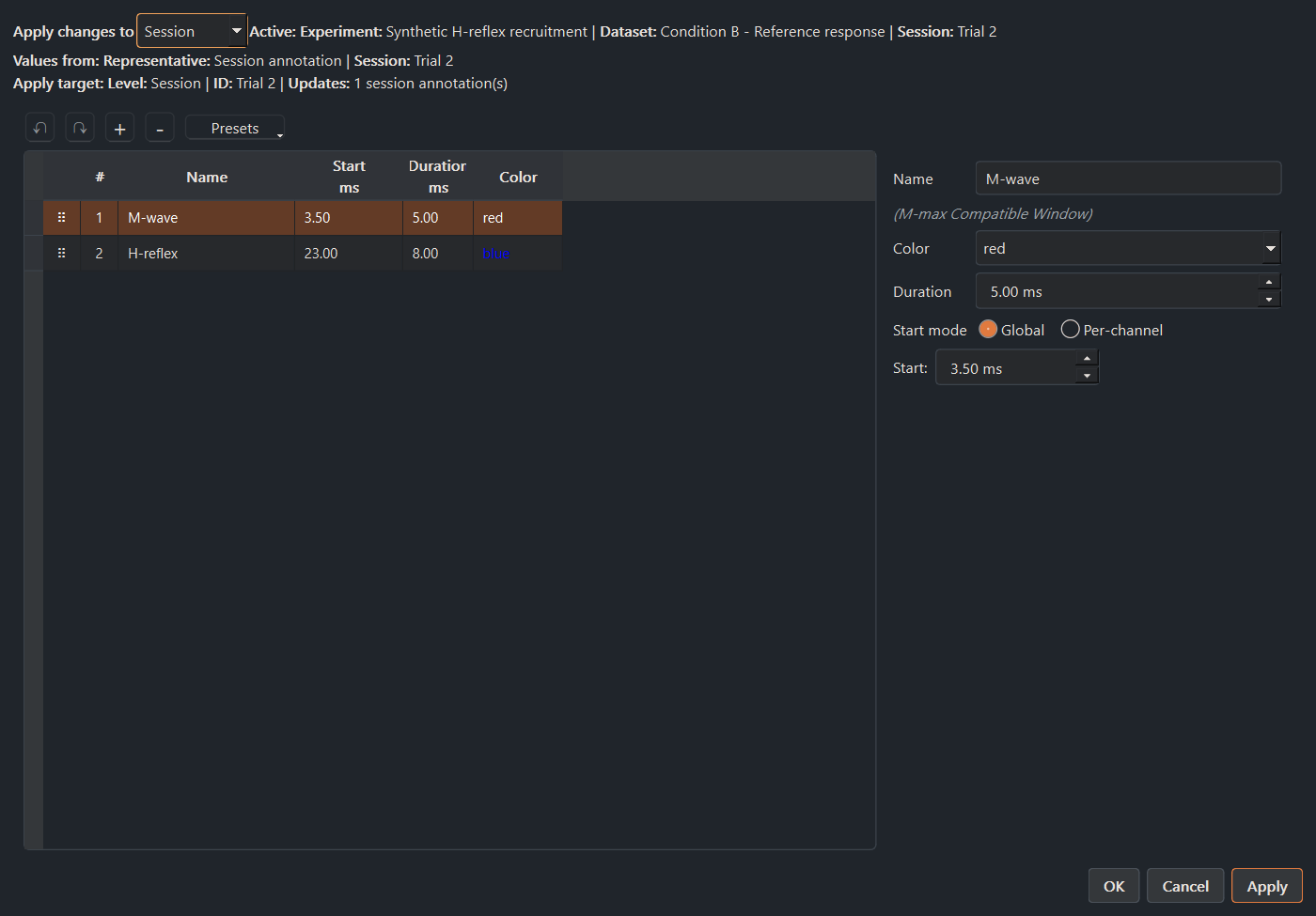
Open Edit > Session/Dataset/Experiment > Manage Latency Windows. The editor can remain open while you select other data, so always read the live details above the table before applying changes:
- Active identifies the experiment, dataset, and session currently selected in the main window.
- Values from identifies the representative session whose windows populate the draft.
- Apply target identifies the chosen scope and the number of session annotations that will be changed.
Use Session while developing or checking timing. Use Dataset or Experiment only when you mean to replace every included child session's window set. If MonStim warns that child windows differ, applying is an intentional standardization action—not a harmless edit.
Steps: create and edit a window
Select a window to edit its name, color, duration, and start time. Names should describe the planned measurement (for example, M-wave or H-reflex) and be consistent across sessions you intend to compare.
M-max naming: a window is treated as an M-response only when its name matches one of the global M-wave Recognition Names in File > Settings Center > Global Analysis > Latency windows (case-insensitive). The shipped list includes M-wave, M_response, and related spellings. Change that global list when your protocol uses a different moniker; use a different name when a similarly named window must not be classified for M-max. An empty list disables automatic M-wave recognition.
Choose one start-time mode:
- Global uses the same start time for every channel. Set it in Start.
- Per-channel lets each channel have its own start time. Edit the full-width channel table below the window details.
Per-channel mode stays per-channel even if its values currently match. The table's Start value reads Per-channel to make that distinction visible.
Review, reuse, and reorder
Use the toolbar for Undo, Redo, Add, Remove, and Presets. Hover an icon for its description. Right-click the table for copy, duplicate, and paste actions; the keyboard shortcuts appear in that menu. Drag the handle at the left of a row to change order. Order matters only for methods that give earlier windows priority, such as exclusive extrema peak-to-trough.
When pasting into data with a different channel count, MonStim adapts the starts to the target channels. Review the detail pane before applying.
Apply safely
- Apply saves and leaves the editor open.
- OK saves and closes it.
- Cancel discards changes that have not been applied.
The editor's own undo/redo tools let you revise a draft. Applied changes are also part of the application's normal undo history. Check the resulting windows on a filtered or single-recording plot, especially before computing aggregate or normalized results.
When sessions differ
Sessions may legitimately have different window sets. Aggregate plots use a named window only from sessions that contain it, so contribution counts can vary by window and stimulus level. That can be useful for exploratory work, but it is not the same as a fully standardized analysis. Review Diagnostic notices before interpreting an aggregate result.