Using MonStim Analyzer 0.7.3
Purpose
MonStim organizes stimulation recordings as experiment > dataset > session > recording. Understanding the data hierarchy defines these levels and what each stores. Select the level you want to inspect or plot, then choose a plot type and its options. MonStim can be an all-in-one curation, plotting, and export suite, or a structured curation step before you export to a separate analysis pipeline. This guide describes the normal workflow and the main actions available in the current application; linked topics provide detailed instructions. If you are new to the workflow, begin with Quick start.
Before you begin
Import an experiment and select a session. Inspect at least one raw and filtered trace before changing analysis settings or interpreting a summary plot. Confirm that the selected hierarchy represents the biological and acquisition units you intend to compare.
Recommended workflow
- Import and verify. Use File > Import an Experiment for native MonStim V3D/V3H files, File > Import Multiple Experiments for a parent folder, or File > Import using Add-on… for a supported foreign stream. Add-on imports detect enabled compatible importers from the selected source and only activate a fully validated, non-overwriting result. Confirm the experiment, dataset, and session selections after import. See Import experiments and Importer add-ons for the detailed paths.
- Inspect the signal. Check a raw and filtered trace, channel identity, polarity, sampling rate, stimulus alignment, and response timing. See EMG processing and transformations for what each displayed signal form means.
- Set latency windows. Open Edit > Session > Manage Latency Windows while developing or checking timing. Dataset and Experiment scopes copy the draft to every included child session and should be used only for deliberate standardization. See Latency windows.
- Select the analysis profile. Use the main-window Analysis Profile selector to activate a profile. Use File > Settings Center > Profiles to create, duplicate, import, export, or edit profiles. See Analysis profiles.
- Choose the amplitude method. Use the method specified by the analysis plan. Review the equations, units, and limitations in Analysis methods.
- Review quality and exclusions. Read diagnostic notices and exclude recordings only with a documented reason. Use Recording exclusion editor for previewed, reviewable bulk decisions.
- Review M-max before normalization. Confirm the M-wave window and method, then confirm that MonStim detected a plateau. See M-max estimation and review.
- Plot, export, and document. Inspect the plot or report, then retain the profile, method, windows, exclusions, bin size, and M-max choices with any export. See Exporting results.
Detailed guides
- Analysis profiles — activate, create, and reuse protocol-specific settings.
- Latency windows — edit and apply session, dataset, or experiment timing windows safely.
- Recording exclusion editor and Diagnostic notices — review data quality before excluding recordings.
- Exporting results — export the plotted data or a structured bulk export with analysis context.
- Settings Center — configure program behavior, global analysis defaults, profiles, and shortcuts.
Common tasks
| Goal | Where to start |
|---|---|
| Import one or several experiments | File > Import an Experiment or Import Multiple Experiments; see Experiment import. |
| Import a supported foreign data stream | File > Import using Add-on…; select a source file/folder and allow safe automatic detection; see Importer add-ons. |
| Change program behavior or analysis defaults | File > Settings Center; see Settings Center. |
| Activate an analysis profile | Main-window Analysis Profile selector. |
| Create or standardize timing windows | Edit > Session/Dataset/Experiment > Manage Latency Windows; see Latency windows. |
| Change channel names or polarity | Edit > Session/Dataset/Experiment > Change Channel Names or Invert Channel Polarity. |
| Edit dataset metadata | Edit > Dataset > Edit Metadata. |
| Exclude recordings after review | Edit > Data Curation > Recording Exclusion Editor; see Recording exclusion editor. |
| Organize experiments and datasets | Edit > Data Curation > Manage Data…. |
| Export current plotted data | Plot & Extract Data. |
| Export aggregated data | File > Bulk Export Data…; see Exporting results. |
| Refresh the experiment list | File > Refresh Experiments list. |
| Repair the active experiment listing | File > Force Rebuild Data Catalog. |
| Repair every experiment listing | Tools > Force Rebuild All Data Catalogs…; this can be expensive. |
| Check or install a MonStim update | Help > Check for Updates…; see Updating MonStim. |
| Save or undo edits | File > Save Current Experiment, Edit > Undo, and Edit > Redo. |
Plots, reports, and levels
The available plot types depend on the selected level. Typical uses include:
| Level | Typical plots and reports |
|---|---|
| Session | EMG overlays, individual recordings, reflex curves, reflex averages, suspected H-reflexes, latency-window distributions, and Session Info. Report. |
| Dataset | Average reflex curves, M-max, maximum H-reflex, latency-window distributions, and Dataset Info. Report. |
| Experiment | Average reflex curves, M-max, maximum H-reflex, and Experiment Info. Report. |
Plot options control the calculation method, channels, signal form, display flags, normalization, stimulus binning, and other plot-specific choices. Aggregate values can have different contribution counts when child sessions do not share the same named windows or exclusions. Review those counts before comparing curves.
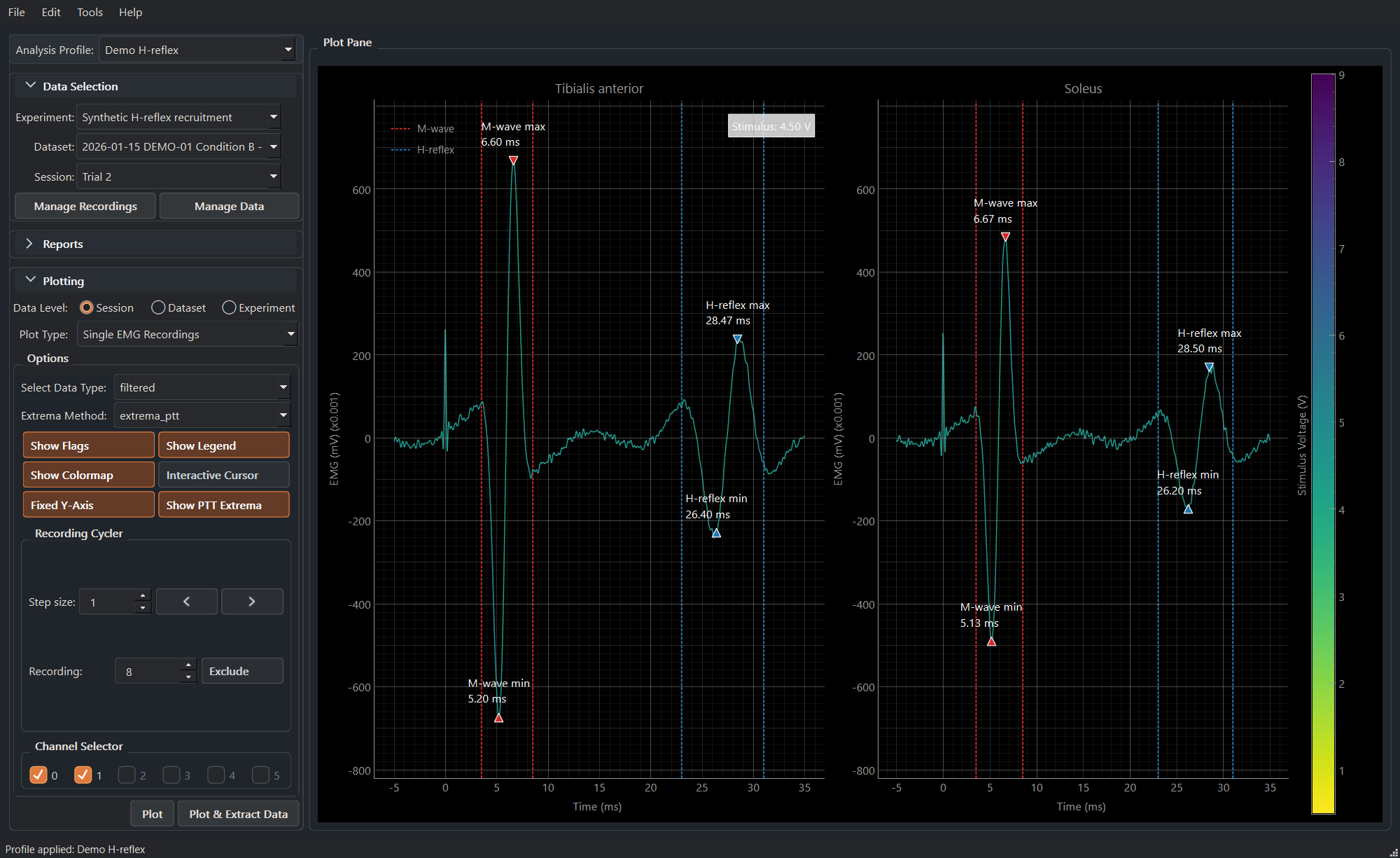
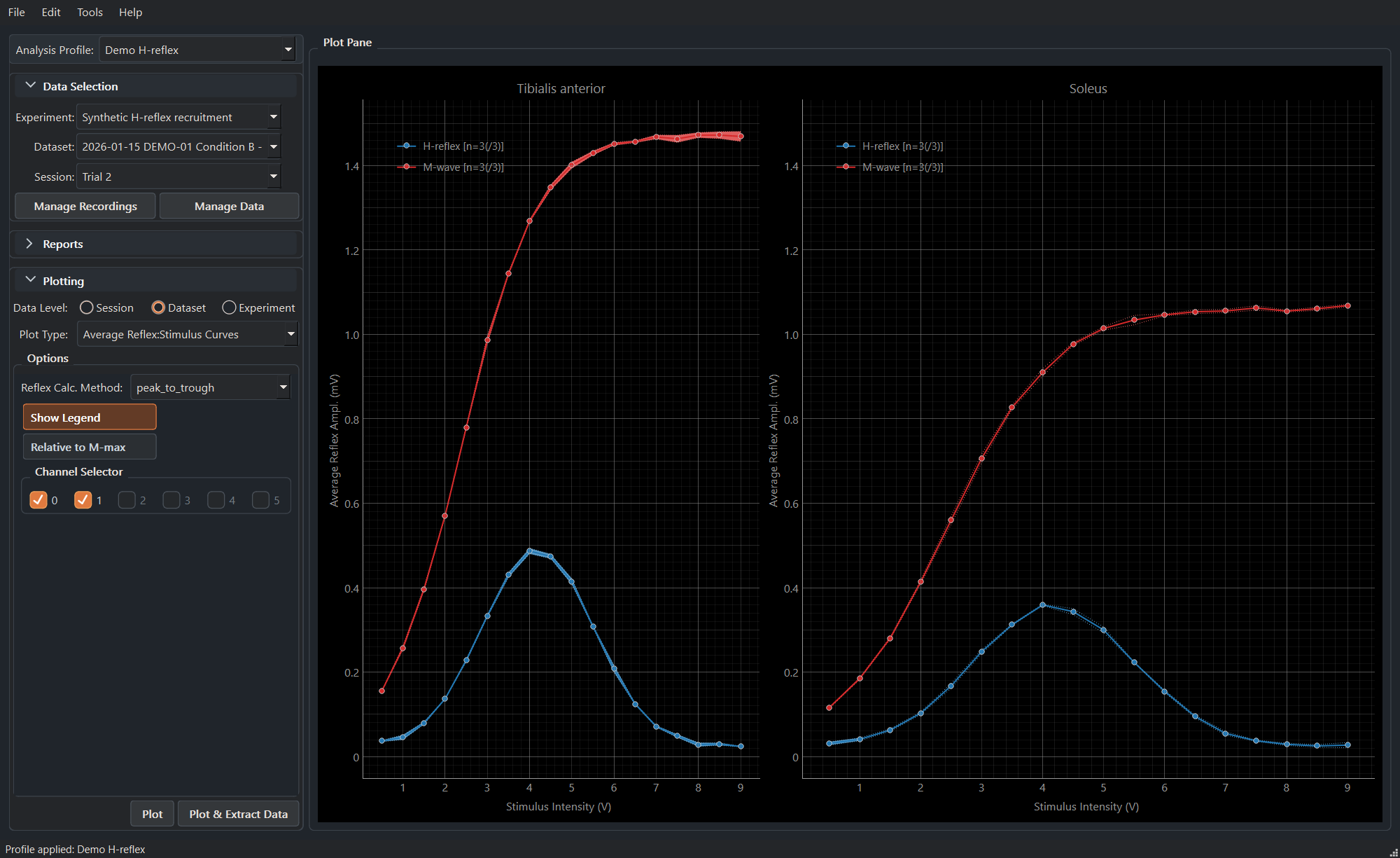
The following reproducible demo views use synthetic data only. A single-recording view makes response windows and selected extrema easy to review; the dataset view shows the expected M-wave recruitment and H-reflex rise-and-fall across stimulus intensity.
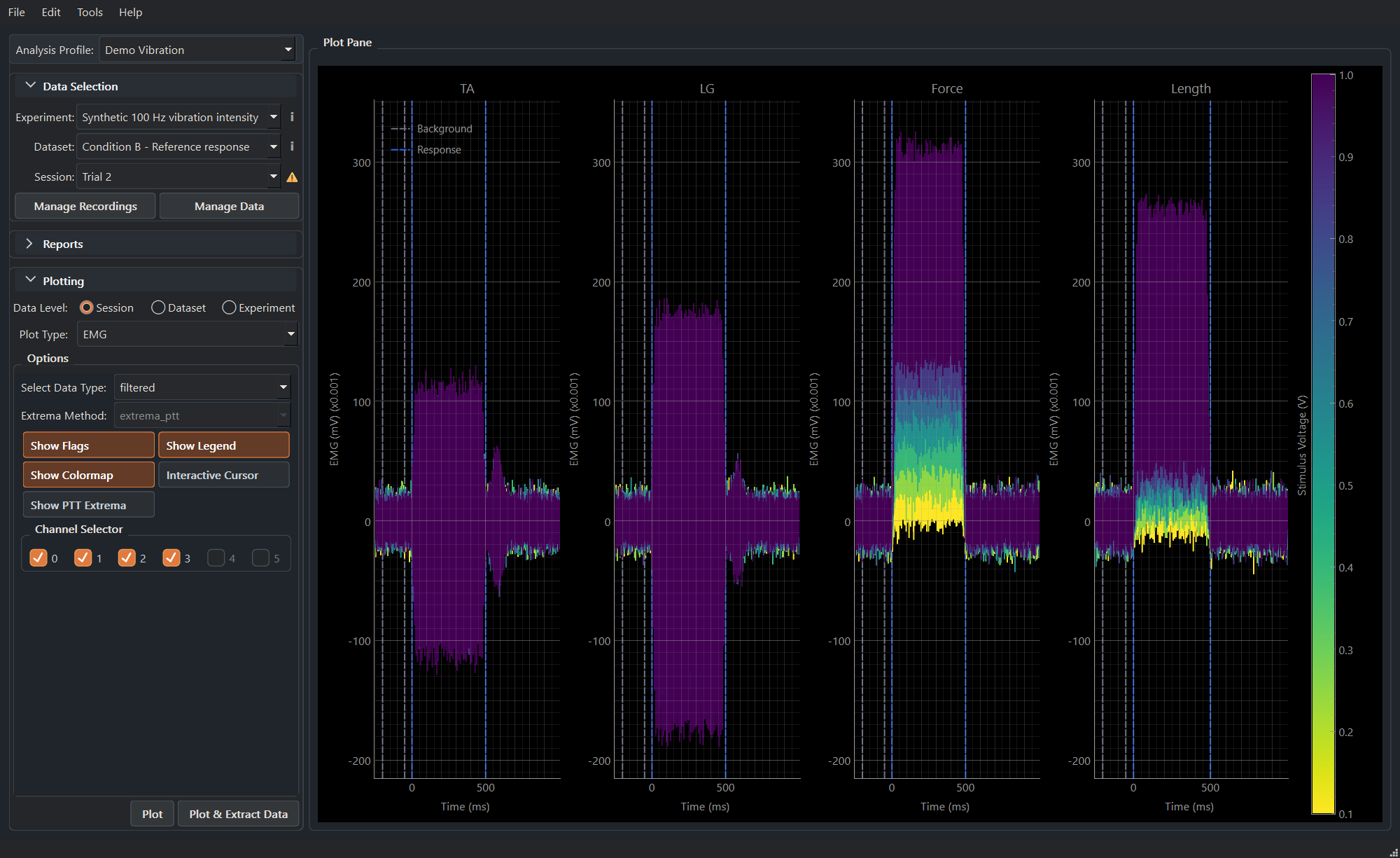
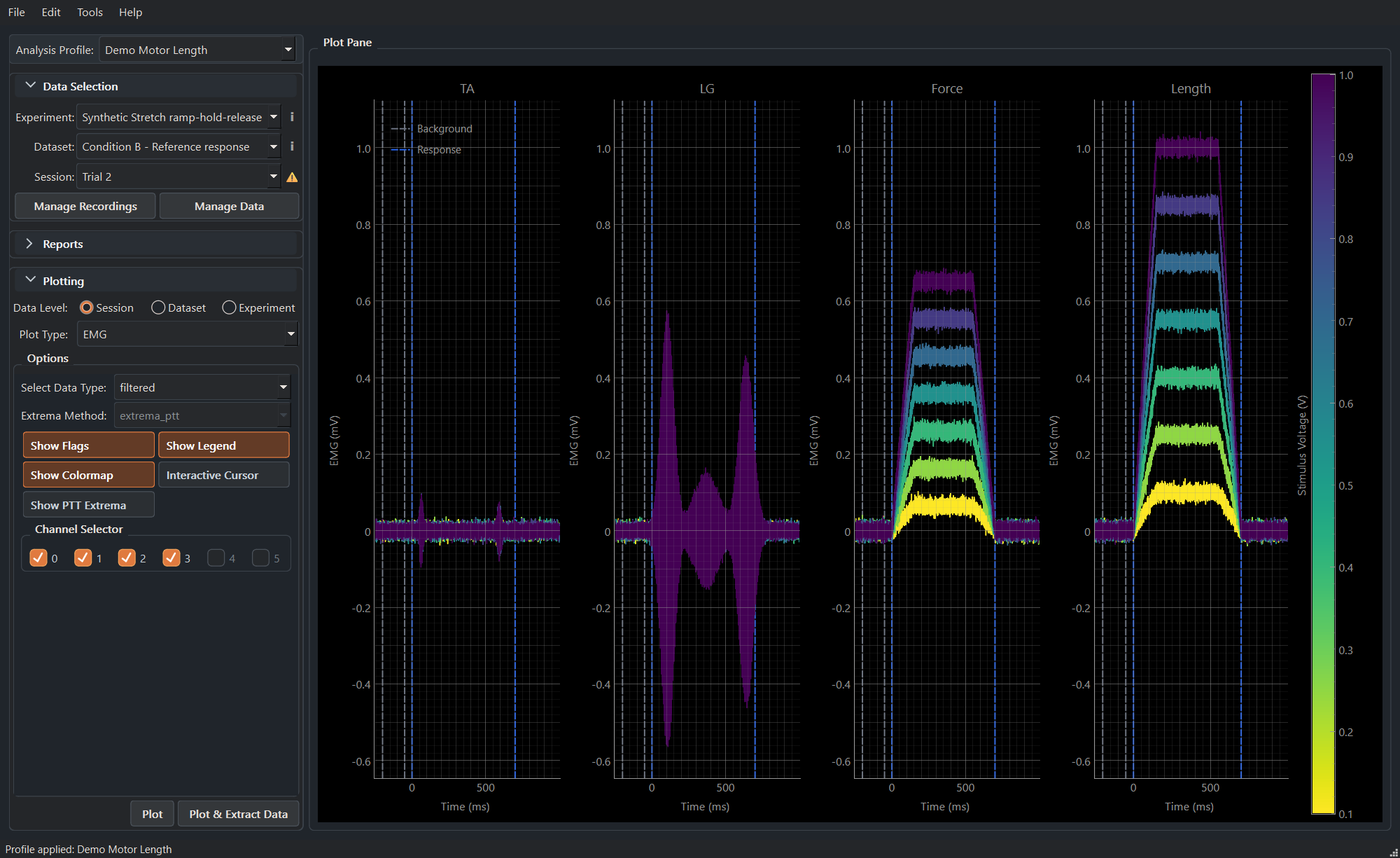
The bundled synthetic protocol archive also includes a TA/LG 100 Hz vibration series and a TA/LG/force/length stretch ramp-hold-release series. These images show the real plotting interface with fictional signals at a representative intensity.
Latency-window and M-wave rules
Every latency-window set belongs to a session. The Dataset and Experiment editors are hierarchy-wide copy operations, not merely views of one shared object. Read the editor’s Active, Values from, and Apply target details before applying a change.
M-max uses the first latency window whose name matches a global M-wave Recognition Names entry, without regard to case. Configure those names in File > Settings Center > Global Analysis > Latency windows. The configured list replaces the shipped aliases; an empty list intentionally disables automatic M-wave recognition. Use one recognized M-wave window per session and inspect its placement on the trace.
Curation and data integrity
The Recording Exclusion Editor stages criteria and decisions until Apply. Changing a criterion makes the preview stale, so run Preview again before applying. Existing exclusions are preserved unless you deliberately include a recording, and the complete applied bulk action can be reversed with Edit > Undo.
Catalog files are rebuildable listings of the managed data. Rebuild the active catalog from File when it is stale. The all-catalog operation in Tools is intended for maintenance and may take substantially longer.
Saving, help, and support
Use File > Save Current Experiment after reviewing edits. Most editing actions are included in the normal undo history. Use Help > Show Help for this library, Help > Open Log Folder for application logs, and Help > Save Error Report for a support package.
Use Help > Manage Importer Add-ons… to install an official importer ZIP, inspect compatibility, check official importer updates, or copy support diagnostics. Use Help > Check for Updates… to inspect a signed MonStim application update. You can opt in to automatic download of a verified compatible application update, but installation/restart always requires confirmation and does not alter research data, profiles, settings, or installed add-ons.
A useful report includes the program version, operating system, selected profile, data level, exact steps, and a screenshot or error message. Do not include identifiable data unless it is appropriate to share.